Applying to a Search
Every NarroHire application has two parts. Part 1 is quick: your qualifications, a resume if you have one, and a few screening questions the church has set for this specific role. Part 2 is a short set of written questions, and NarroHire tells you up front, in minutes, how long that part will actually take before you start it. You can do both in one sitting or split them across two.
Finding an opening
Churches post their openings as a link, wherever they already recruit: their own site, a denominational job board, a search-firm listing, word of mouth. Clicking that link takes you straight to the real posting on NarroHire, no account needed yet. Take your time here. You'll see the role description, what the church says about itself, its ministry philosophy, and often a real "about us" section that goes well beyond a typical job listing. This is the church talking to you directly, before any screening starts.
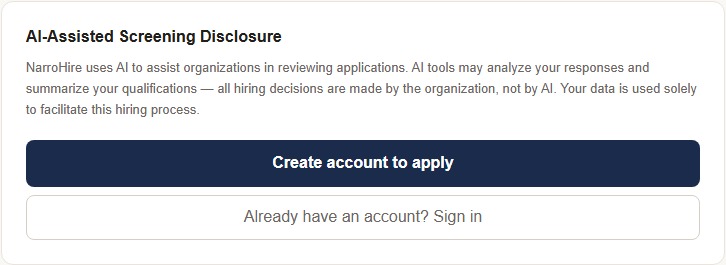
At the bottom of the posting, there's a short AI-Assisted Screening Disclosure. It says plainly what NarroHire's AI does and doesn't do: it can analyze your written responses and summarize your qualifications for the hiring team, but every hiring decision is made by a person at the church, never by AI. Worth reading once, since it applies to every search you apply to.
Creating your account
Click "Create account to apply" and you'll land on a real signup form: your name, email, a password, your phone number, your location, and your current role and organization. All at once, one form. NarroHire tells you exactly why it asks for your phone number and who it goes to: shared only with churches you apply to directly, never anyone else, and never used for calls or texts by NarroHire itself.
After you submit, check your email. NarroHire sends a confirmation link before your account is active. Click it, and you'll land back on a sign-in screen confirming you're ready to go. Sign in, and you're returned to the exact posting you started from.
If you already have a NarroHire account from a previous search, just sign in instead. Your profile carries over automatically.
Part 1: your qualifications
You'll see an "I Acknowledge & Continue" button first, confirming you've read the AI disclosure. After that, Part 1 itself: a short question on how you heard about the opening, the church's own screening questions for this role (a mix of yes/no and multiple-choice), an optional resume upload, and a ministry experience section.
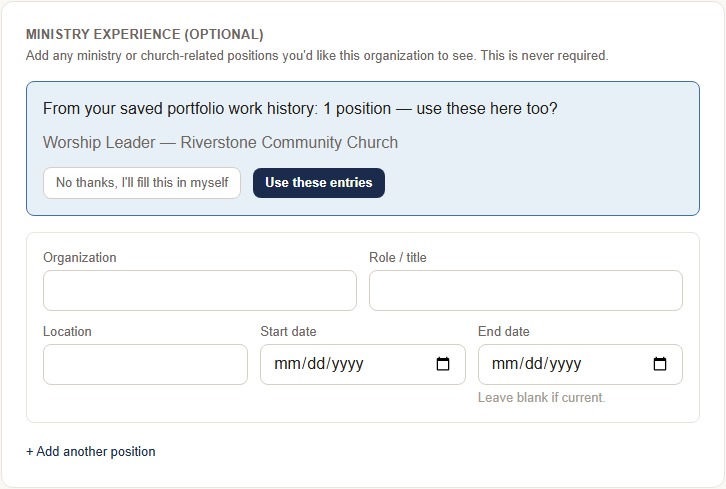
That last section is genuinely optional. Add past ministry positions if you want the church to see them, or skip it entirely. If you've already built a NarroHire portfolio (see the Building Your Portfolio guide), NarroHire will offer to reuse the ministry experience you saved there instead of typing it all again, and it's honest about where those entries came from. Accept them, edit them, or start fresh. Nothing here is scored or ranked. It's collected so the church can read it, full stop.
The form autosaves every 30 seconds, so a dropped connection or an accidental tab close won't cost you your answers.
When you're ready, review your responses on one screen before submitting, then hit "Submit Part 1."
Between the two parts
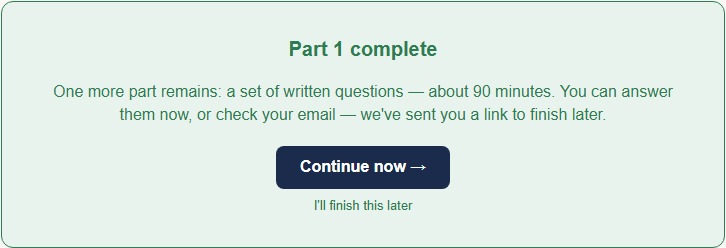
Right after you submit Part 1, NarroHire tells you exactly what's left and how long it will actually take. Not "a quick set of questions." A real number, in minutes, based on the specific questions this church has asked. You can continue straight into Part 2, or come back later. Either way, NarroHire emails you a link so you never lose your place, and Part 1's answers are already saved either way.
Part 2: written questions
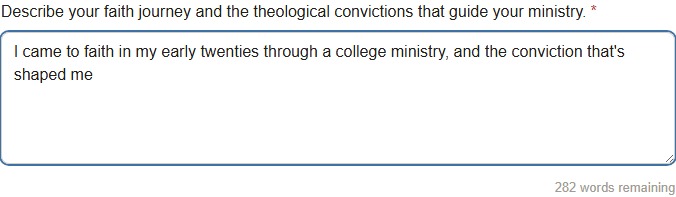
This is where a church learns how you think, not just what boxes you check. Each question has a word limit, usually 300 words, with a live count-down as you write so you always know how much room you have left. Same autosave as Part 1.
Take these seriously. This is the part of the application an AI-assisted summary draws from most directly, and it's also, honestly, the part that tells a search committee the most about you. Write like you're talking to the people who'll actually read it, because you are.
Review your answers on one screen, then hit "Submit Application." That's it. Your application is complete.
After you submit
You'll land on a simple confirmation: your application was received, and the hiring team will be in touch through NarroHire, not by chasing down a separate email thread. If you don't have a NarroHire portfolio yet, you'll see a short, honest pitch for building one: it saves your ministry experience, bio, and media in one place, so the next search you apply to, you're not starting from scratch. If you already have one, you'll see a link to it instead.
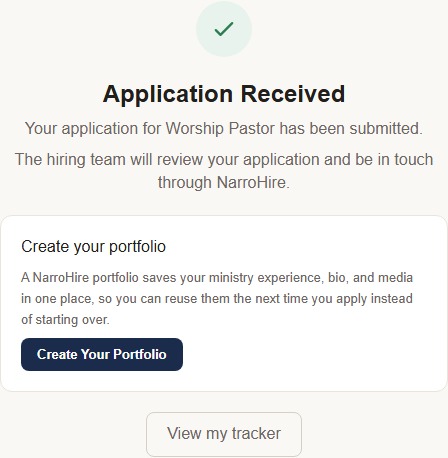
From here, everything about this application lives in your Tracker: where it stands, what the church has asked for next, and any updates along the way.