Setting Up Your Organization
Creating your account
On the signup page, choose "I'm hiring." You'll fill in your organization's name, a physical mailing address (required by federal CAN-SPAM law to appear in any email your organization sends through NarroHire), your own name, email, and a password of at least eight characters. Create your account and you're in.
The Church Profile, and why it matters
Everything in the Church Profile does two jobs at once. Candidates read it before deciding whether to apply. NarroHire reads it too, drawing on it to draft screening questions in your church's actual voice instead of a generic template.
That second part matters more than it sounds. A church that fills this in well gets AI-drafted job descriptions, refined language, and screening questions that already sound like the people who wrote them. A church that skips it gets generic output, or in some cases no AI help at all until enough is filled in. The six steps below aren't paperwork standing between you and hiring. They're the actual raw material NarroHire works from.
How visibility works
Every field in the profile falls into one of three categories, and it's worth understanding the pattern once instead of relearning it six times.
Some fields are always public: your city, your mission statement, your culture description. No toggle, no decision to make, they simply appear on your posting once you fill them in.
Most fields carry a "Shown on your public posting" toggle, and default to on. Fill them in and they're visible immediately. Switch any of them off if you'd rather keep that particular answer between you, NarroHire's AI, and your own team.
A smaller set default the other way: off. Staff composition, your biggest future challenge, compensation philosophy, and the two most sensitive theological positions all start private. You can turn any of them on later, but nothing here gets published until you say so.
The six steps
1. Basics
Your website URL (read once to help AI match your writing style, never shown as a link), city and state (always public, and this is what candidates and Google Jobs both see), weekend attendance (the single field AI leans on most when drafting questions), when you were founded, and a short history.
2. Facilities & Services
Sanctuary capacity, any special spaces like a gym or recording studio, recent facility improvements, how many weekly services you run, how many campuses, what a typical Sunday looks like before the service starts, and an optional YouTube channel link, which candidates can use to watch a real service before they ever apply.
3. Staff & Ministries
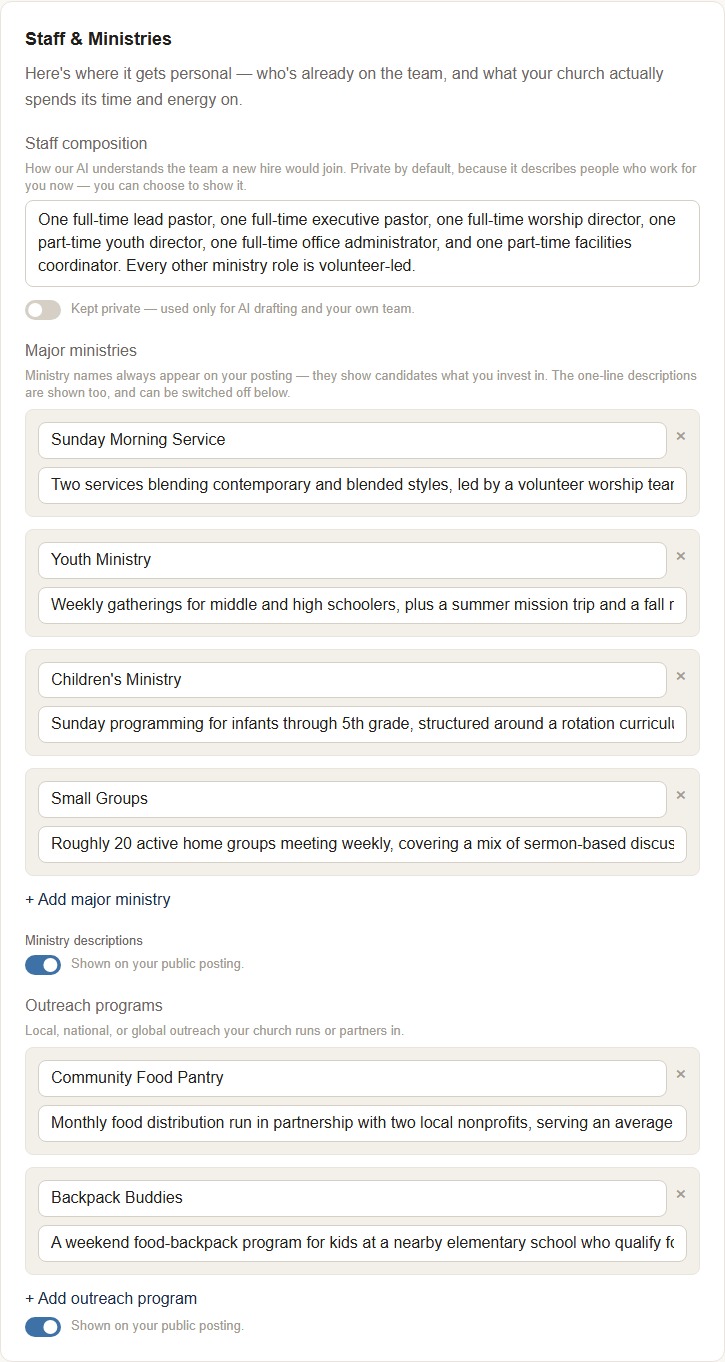
Staff composition describes the team a new hire would actually join, and it's private by default since it's about real people currently on your payroll. Major ministries always show their names publicly (this is what tells a candidate what you actually invest in), and each one's one-line description can be shown or hidden individually. Outreach programs work the same way.
4. Mission & Culture
Mission statement, vision statement, culture description, and why you love your community. All four are always public, no toggles here, and culture description in particular tends to be the most-read section of an entire posting. This step also does one more thing worth knowing: filling in Mission Statement is what unlocks AI drafting help throughout the search builder. Leave it blank and that help stays locked, even if every other field is filled in.
5. Theology & Denomination
Marked optional on the page itself, and it means it. "Prefer not to state" and "unsure" are both completely fine answers here.
Denomination, theological alignment (a real controlled list your AI uses to anchor the questions it drafts, plus a free-text box for anything the list misses), worship style, governance model, and network or movement affiliations.
Then two questions candidates answer too, in their own words: your view of women in ministry, and your alcohol policy. Whatever you write here shows up on your posting unless you switch it off, and sits beside each candidate's own stated answer in their file. NarroHire never scores the gap or calls it a mismatch, it just shows both answers plainly. A catch-all field at the end covers anything those two didn't.
Two more positions round out this step: biblical inerrancy and your stance on marriage and sexuality. Both are private by default, both are real multiple-choice answers rather than free text, and "prefer not to state" never appears on your public posting even if you make everything else here visible.
6. Wins & Hiring
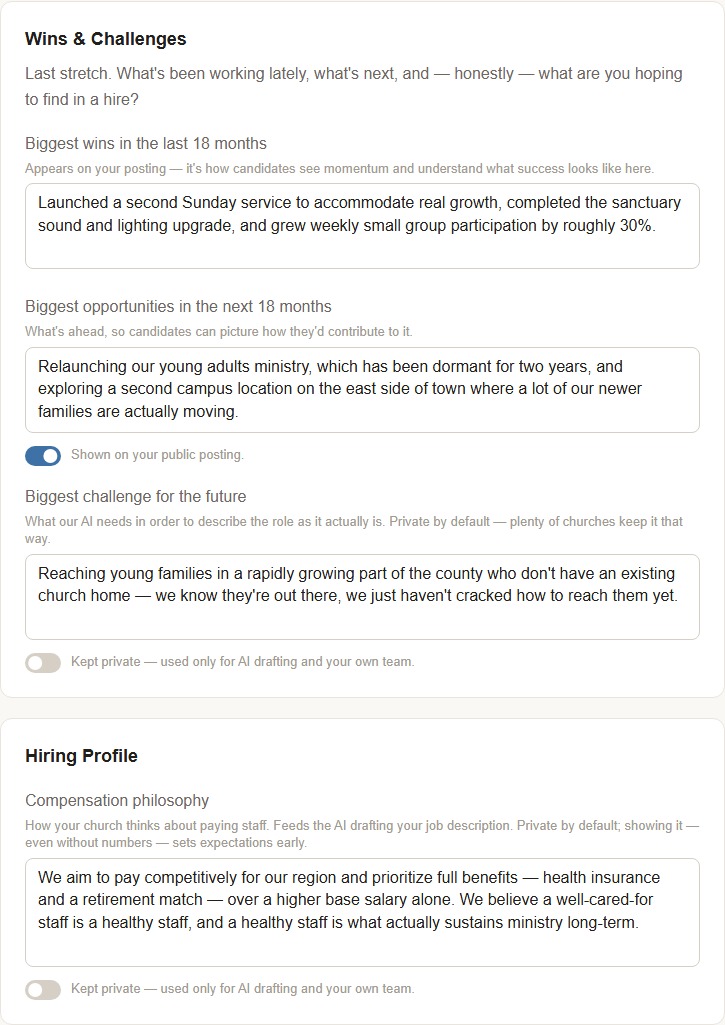
Your biggest wins over the last 18 months (always public, and it's how a candidate sees real momentum), your biggest opportunities ahead, and your biggest challenge, which stays private by default since it's meant for NarroHire's AI and your own team rather than public consumption. Compensation philosophy closes out the step, also private by default. Even without a number attached, stating how you think about paying staff sets real expectations early. Worth thinking about beyond base salary too. Health insurance, a retirement match, continuing education funds, a sabbatical policy, anything real that adds to the value of the role belongs here. And if your church doesn't currently offer benefits, say so plainly. A candidate would rather know that upfront than find out partway through an offer conversation.
Saving your profile
There's no publish step and no lock-in. The last step ends with a "Save profile" button, and you can return to any step and edit it whenever something changes.